 Commbot
Gender choice: focus automatic upload on women's or men's products
A store usually sells to one audience. The gender choice makes automatic upload pick only products for that audience; a card with the wrong gender shows up in the wrong searches and raises the risk of returns.
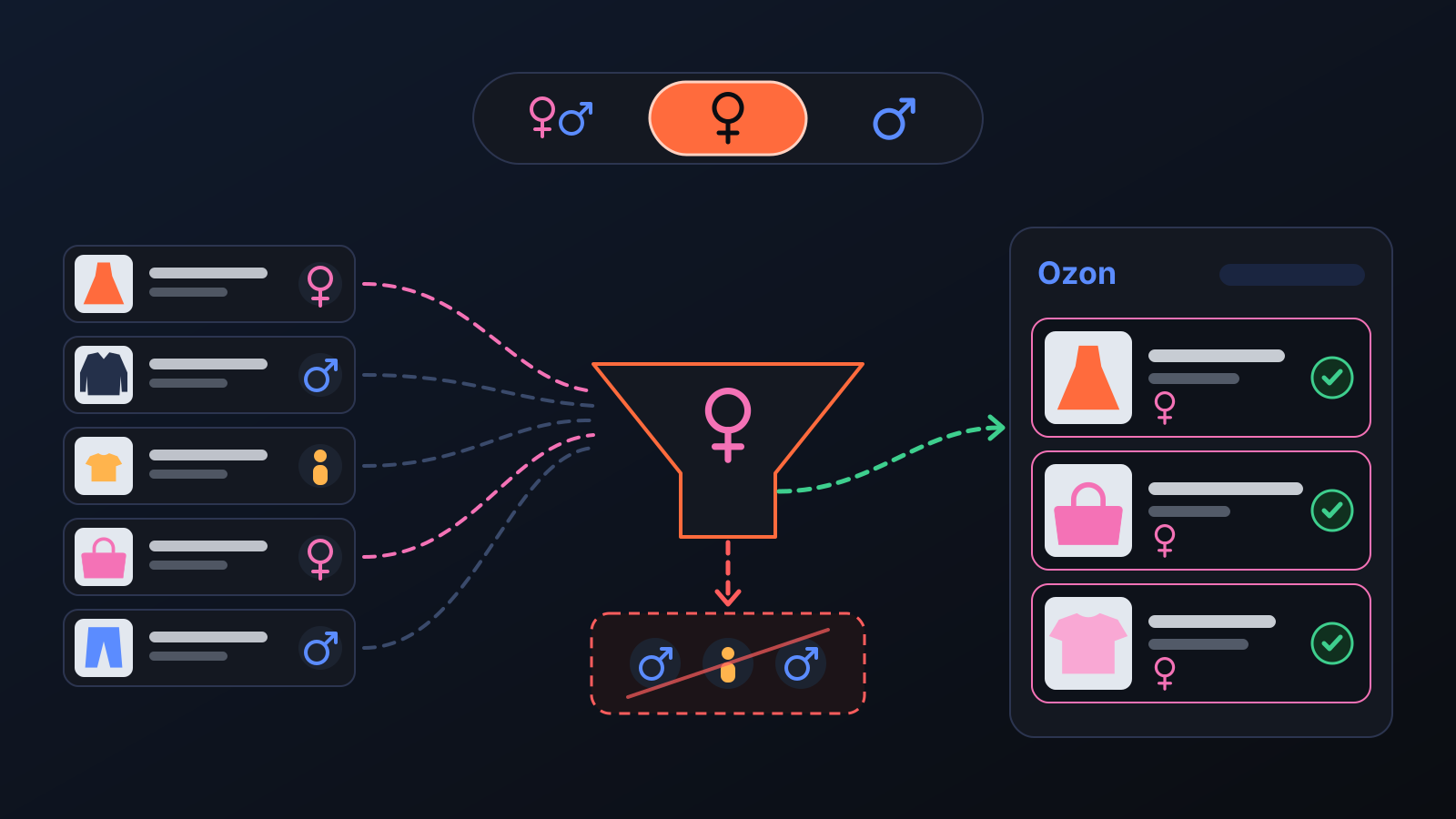
A women's jacket in your menswear store, or a kids' coat in your women's store, breaks up the storefront; worse, a card with the wrong gender shows up in the wrong searches and leads to returns. Since 26 September you can choose a gender in Product Upload, and the engine picks only products of that gender.
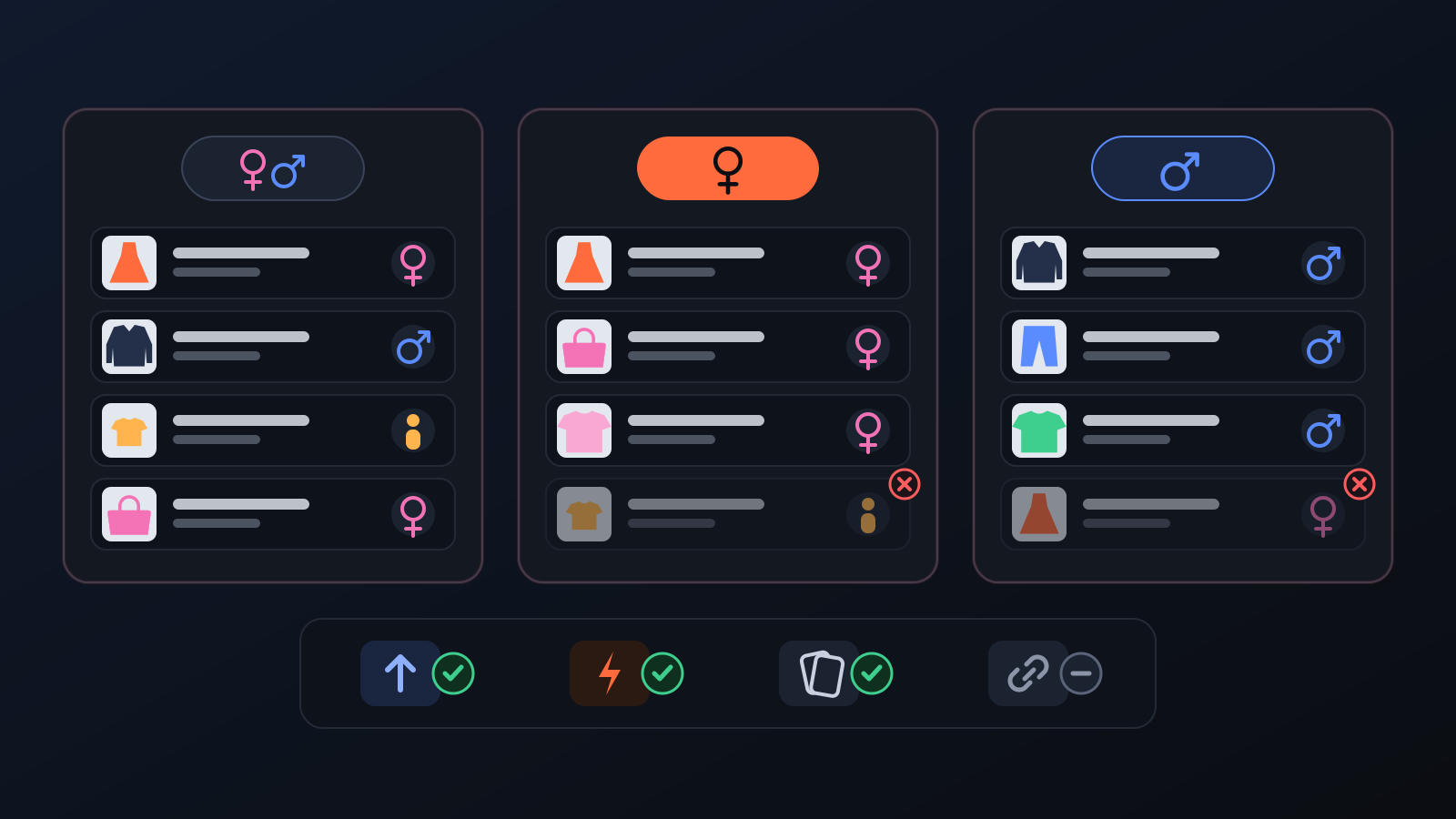
How to use it
- Open Product Upload in the left menu; on the Automatic upload card, find the Gender list under Products per day.
- Choose Mixed, Women or Men. Mixed is the previous behaviour: no filter.
- Press Save & Activate. The choice applies from the engine's next pick; Upcoming products updates at its next calculation or when you press Refresh.
What it affects
- Automatic upload: applies to every product the engine newly picks. The product's gender is read from the brand's own women's / men's section, and the gender on the Ozon card is written from the same data.
- What stays out: with Women or Men selected, kids' and teen products, unisex and beauty products, and products of unclear gender are not picked. They can only be candidates under Mixed.
- Upload now: a product you upload straight from Upcoming products follows the same rule; if it does not match, it is not uploaded and the reason is shown.
- Discover: with By my store's upload settings on, only products of your chosen gender appear.
- Your own additions: products you add by link or by hand are not affected. Drafts prepared before you made the choice may stay in the queue; you can remove the ones that don't fit from Upcoming products.
Tips for better results
- If your store sells to one audience, make the choice; if it sells to both, leave it on Mixed.
- Combine it with priority words: for example, Men + ceket, mont (jackets) brings men's outerwear forward.
- Remove products that were queued before the choice and don't fit, using Remove in Upcoming products.
More from Commbot
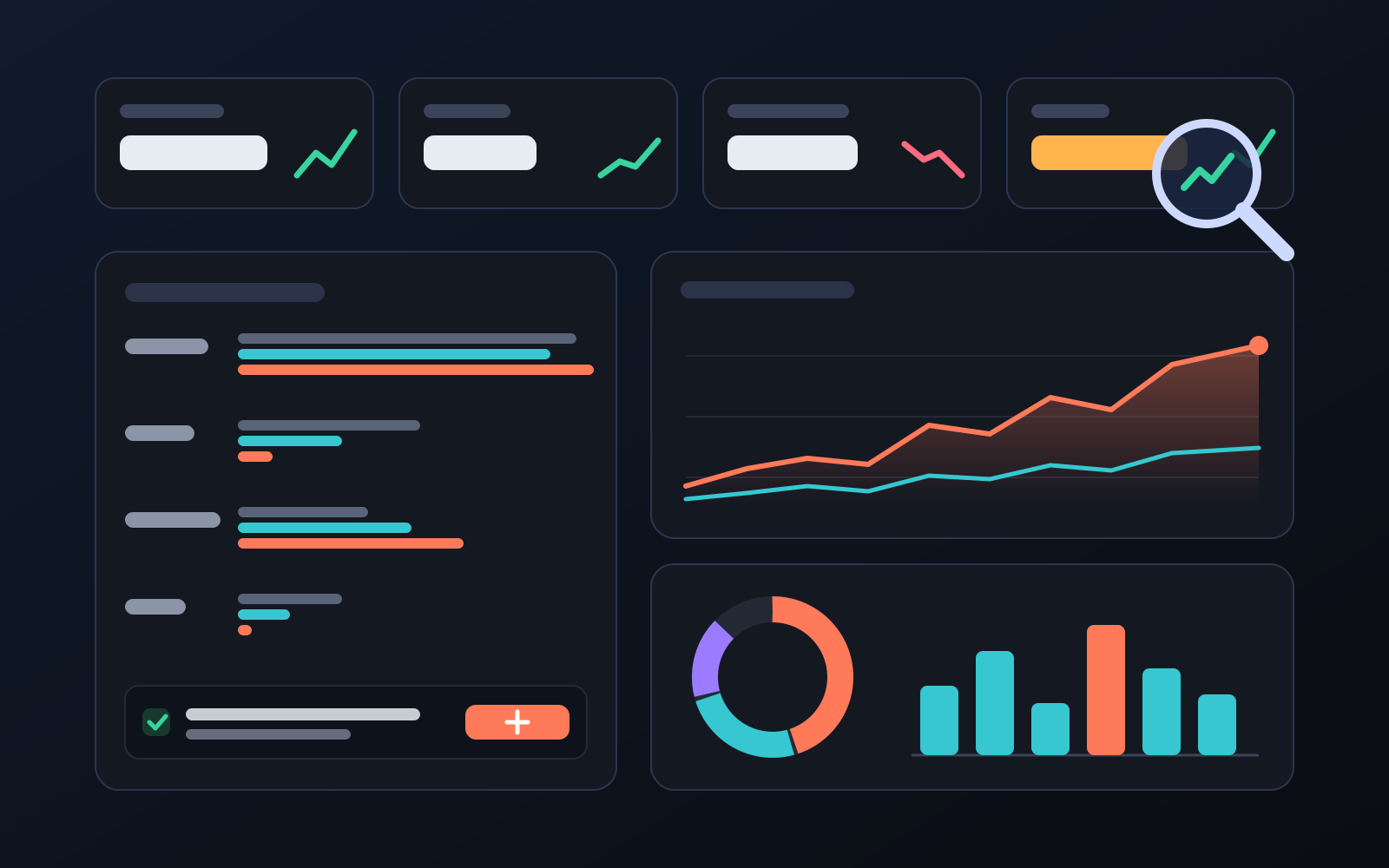
Analytics page: what sells in your store and what doesn't, on one screen
See how your products do by category, brand, price, colour, size and region, in charts. The page turns findings into plain sentences and gives one-click suggestions.
2026-10-29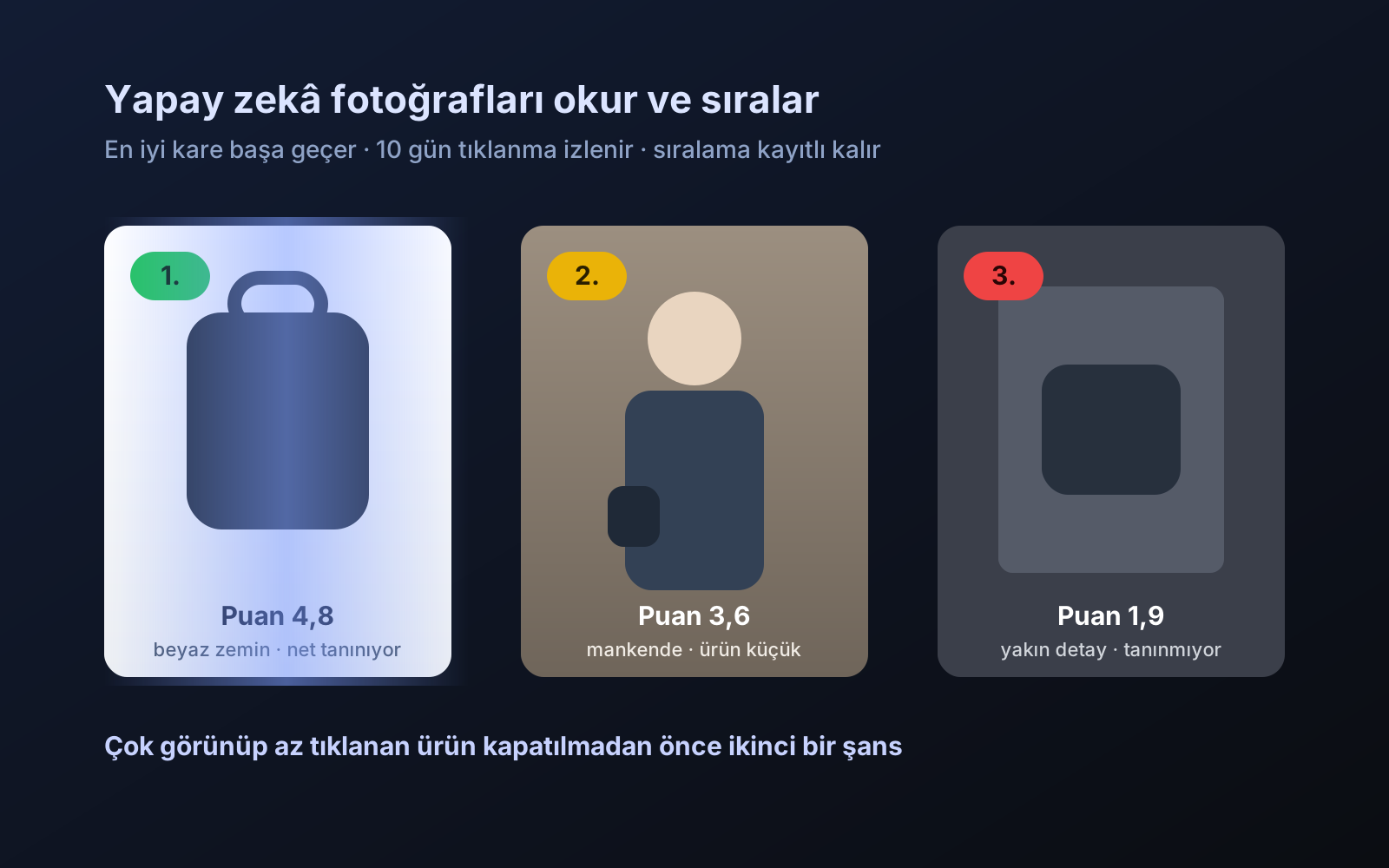
Photo trial before swap
We have improved our system for turning products on and off. It is still in a trial stage, but you can already use it.
2026-10-28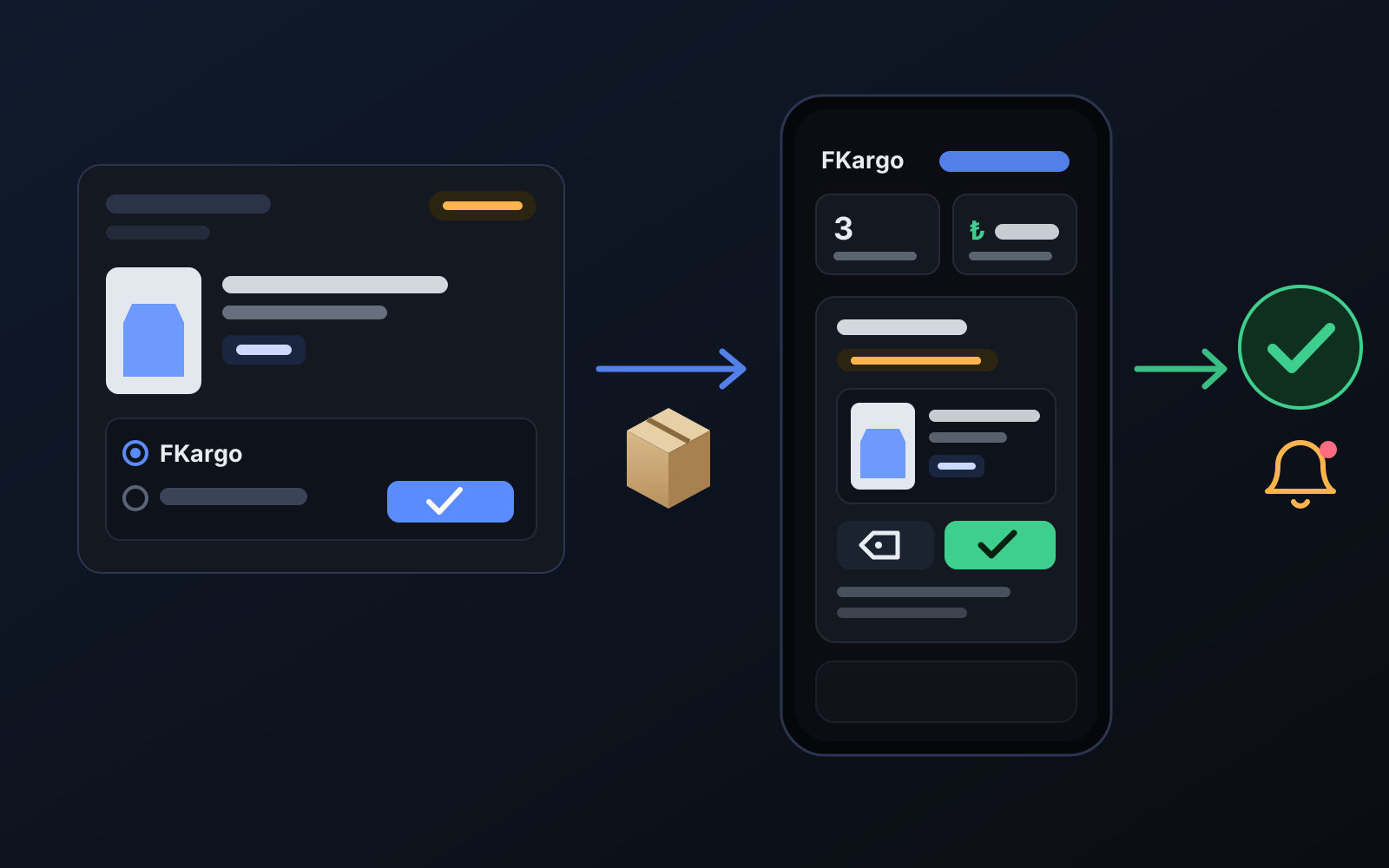
Shipping partners: hand your orders to FKargo and see when they are shipped
Order the item from the brand to FKargo’s address; FKargo puts on the Ozon label and drops the parcel at the shipping point. One-click forwarding and automatic forwarding in Incoming orders.
2026-10-20