 Commbot
Analytics page: what sells in your store and what doesn't, on one screen
The Analytics page brings the last 7, 30 or 90 days of your store together in six tabs: overview, products, money, customers and search, what the engine did, and a comparison with the average of other Commbot stores. The goal is to see why a product sells or doesn't, and to run your store with data.
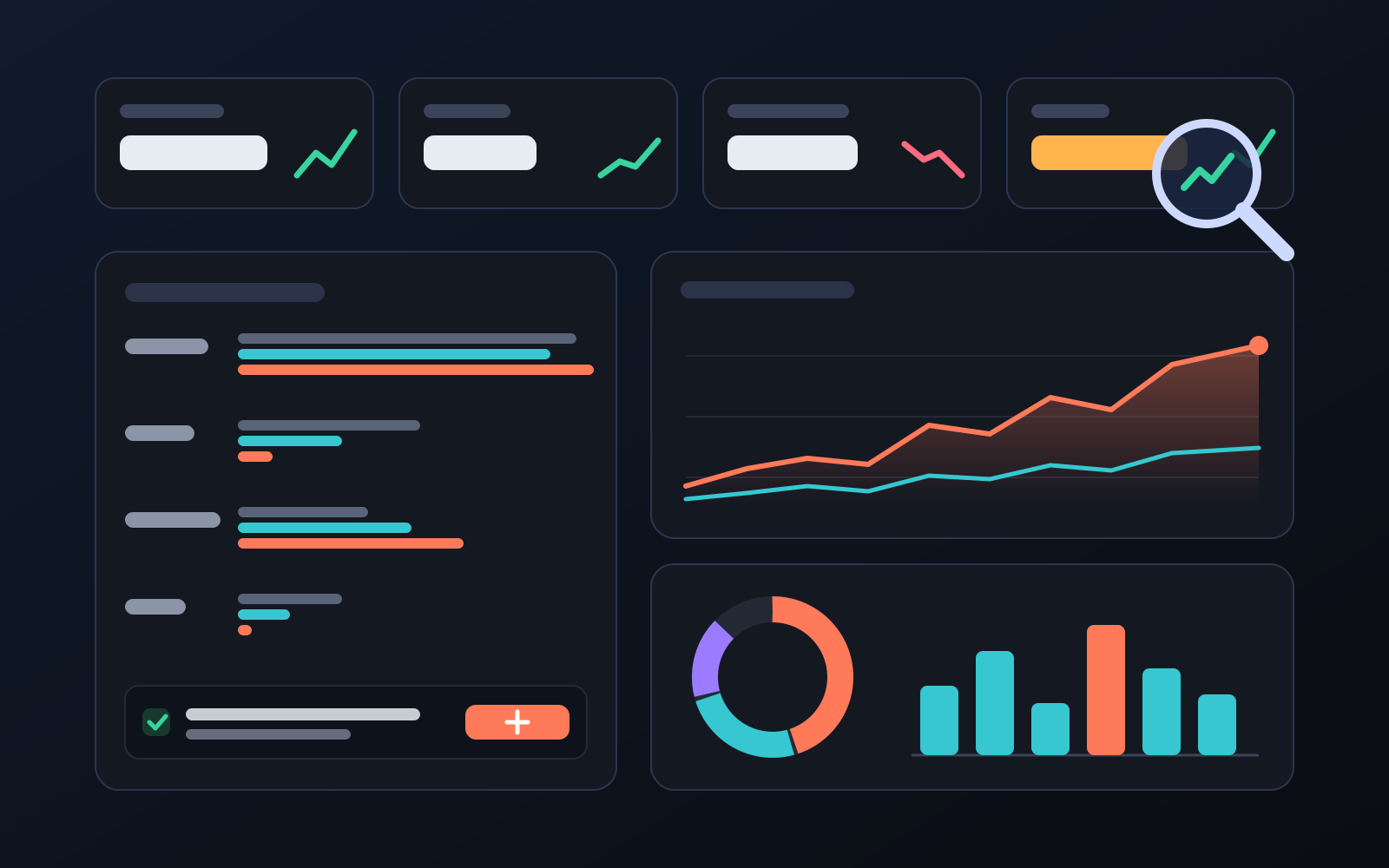
Your store has hundreds of products, and checking them one by one to see which work is hard. The Analytics page brings Ozon's views, clicks, carts and orders together with your profit calculation on one screen, so you can see which category, brand or price range to push and which to cut back.
How to open it
- In the left menu, click Analytics under Sales.
- Pick the period at the top right: 7 days, 30 days or 90 days.
- Move between the tabs. Clicking a product opens its product card; clicking a category shows its subtypes.
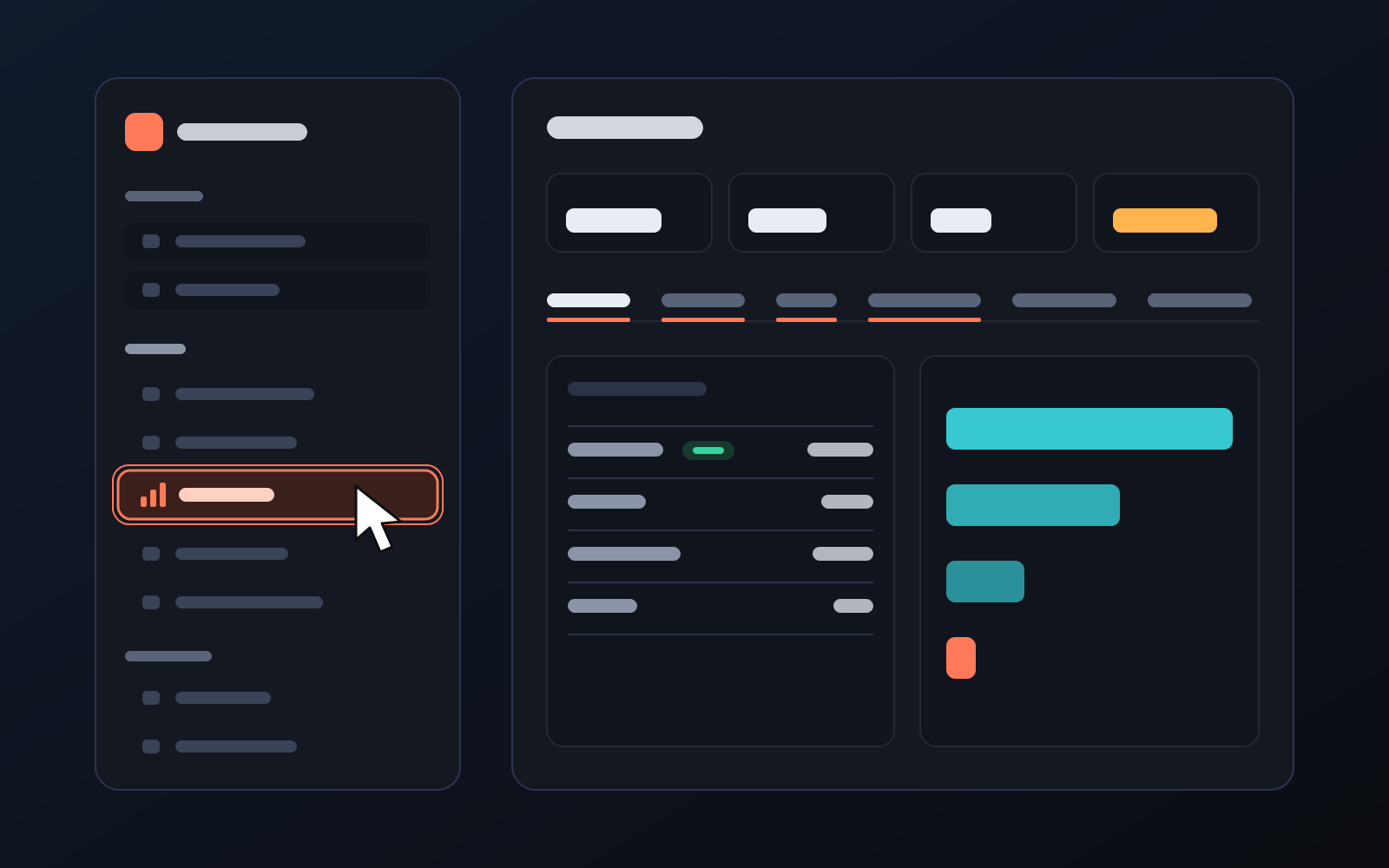
What is where
- Top strip: search views, product clicks, add to cart, orders, revenue and profit, with the change from the previous period.
- Overview: insights with one-click suggestions, shelf share vs sales share, the category scorecard (best category marked), the sales funnel and the daily trend.
- Products: a brand × category table, on which day new products start getting views, size and colour comparison, the top 20 and weakest 20 products.
- Money: settled and expected profit; profit by category, brand and price range; how Ozon deductions break down; how many products are in campaigns.
- Customers and search: which Russian search terms show your products, the best day of the week, the regions orders come from, products added to cart but not bought.
- What the engine did: how new products put in place of weak ones compare, why products were closed, how many uploads take off.
- Market comparison: your click and add-to-cart rates next to the average of other Commbot stores in the same category.
What it affects
- Read only: opening the page changes no setting, price or product.
- Suggestion buttons: with your confirmation, add a word to the "Upload these first" or "Never upload these" list on the Product upload page. Products you add by hand are not affected.
- Privacy: the market comparison never shows another store's products or sales; only an average calculated from at least three stores.
For better results
- Check the Insights card once a week; cut back categories and brands that take space without selling, and make room for those that sell.
- Try the win-back discount for products in the Added to cart but not bought list.
- If your click rate is below the market average, look at the first photo and the price.
- Ozon data arrives 1-2 days late; empty last days do not mean sales have dropped.
More from Commbot
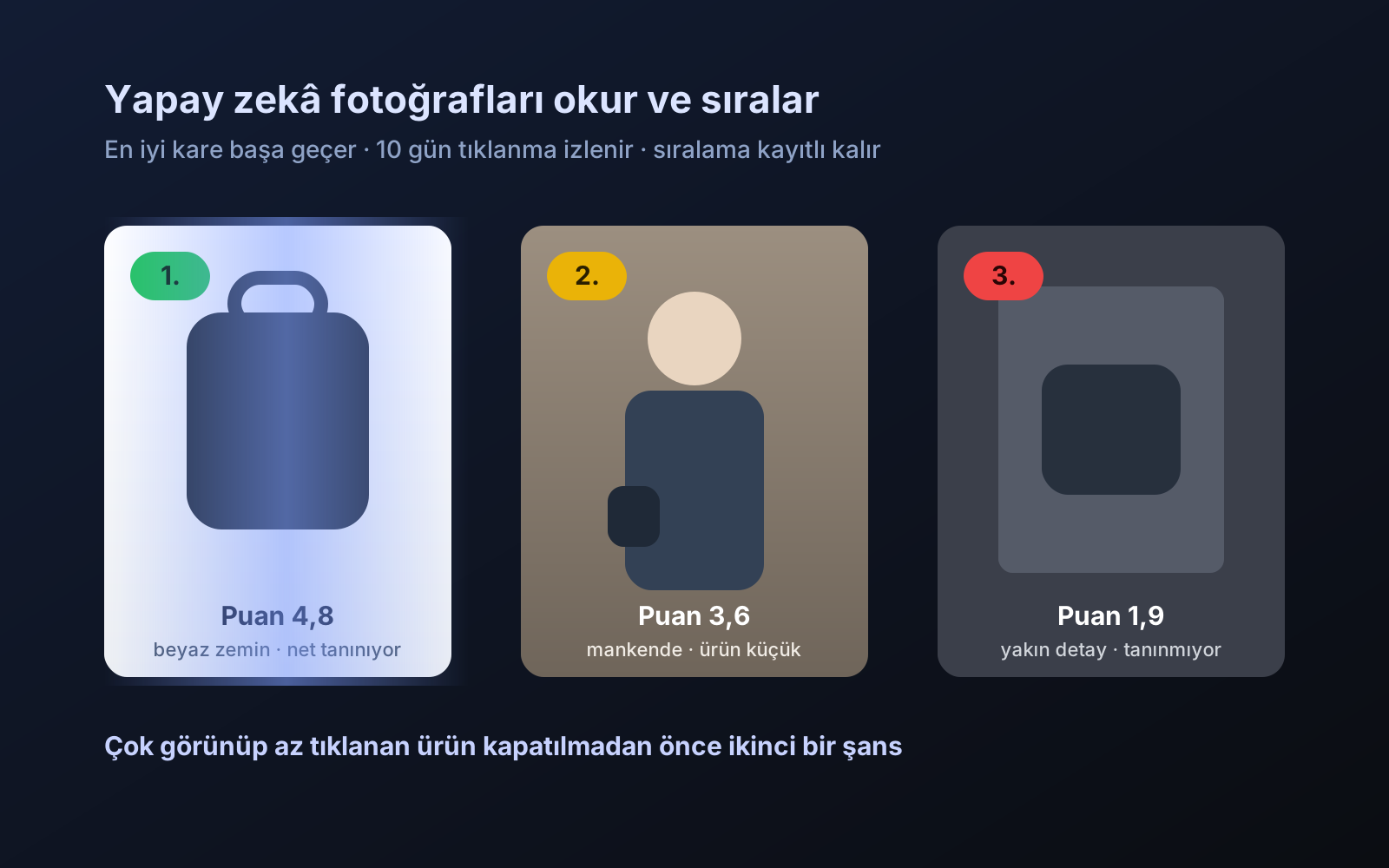
Photo trial before swap
We have improved our system for turning products on and off. It is still in a trial stage, but you can already use it.
2026-10-28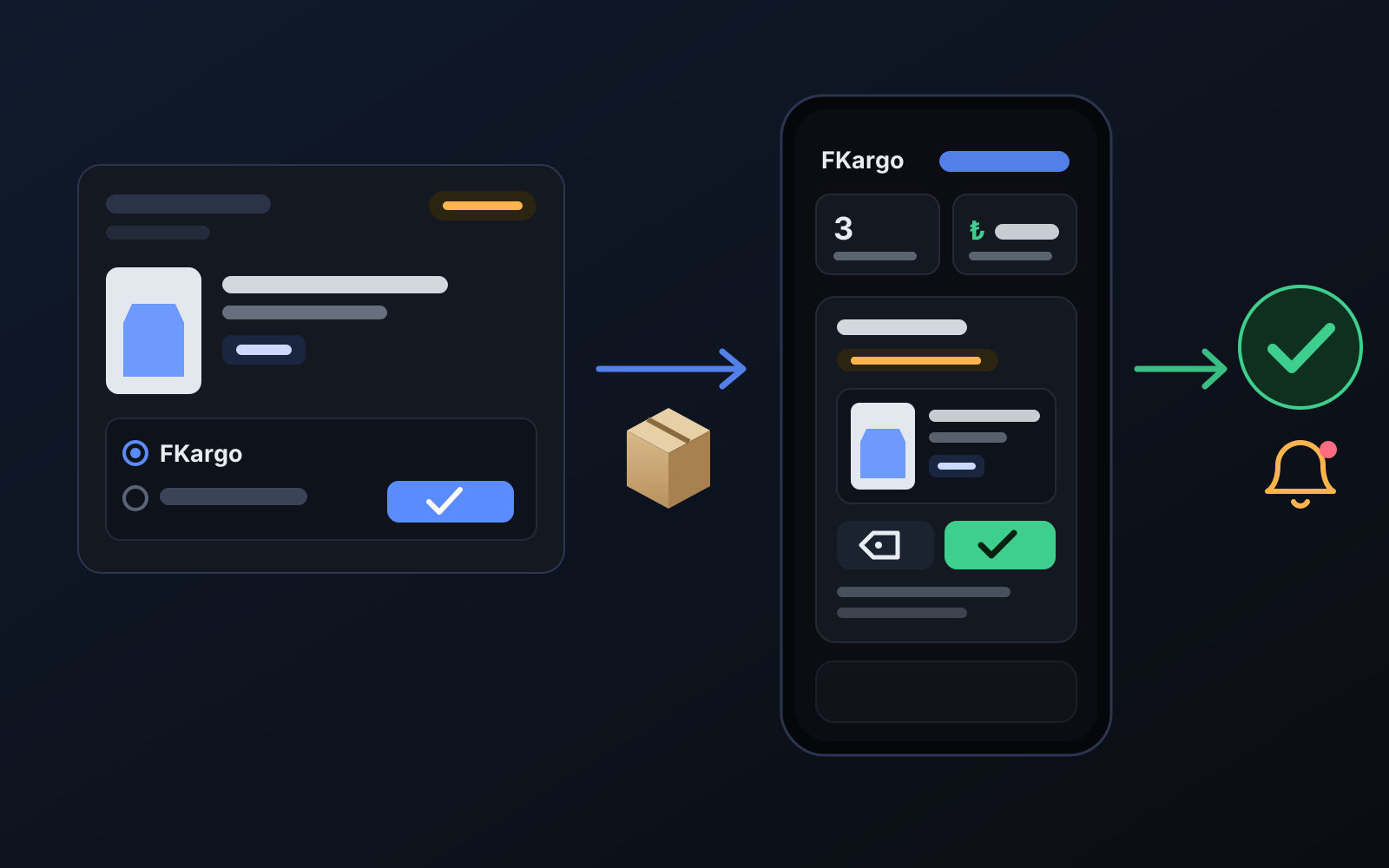
Shipping partners: hand your orders to FKargo and see when they are shipped
Order the item from the brand to FKargo’s address; FKargo puts on the Ozon label and drops the parcel at the shipping point. One-click forwarding and automatic forwarding in Incoming orders.
2026-10-20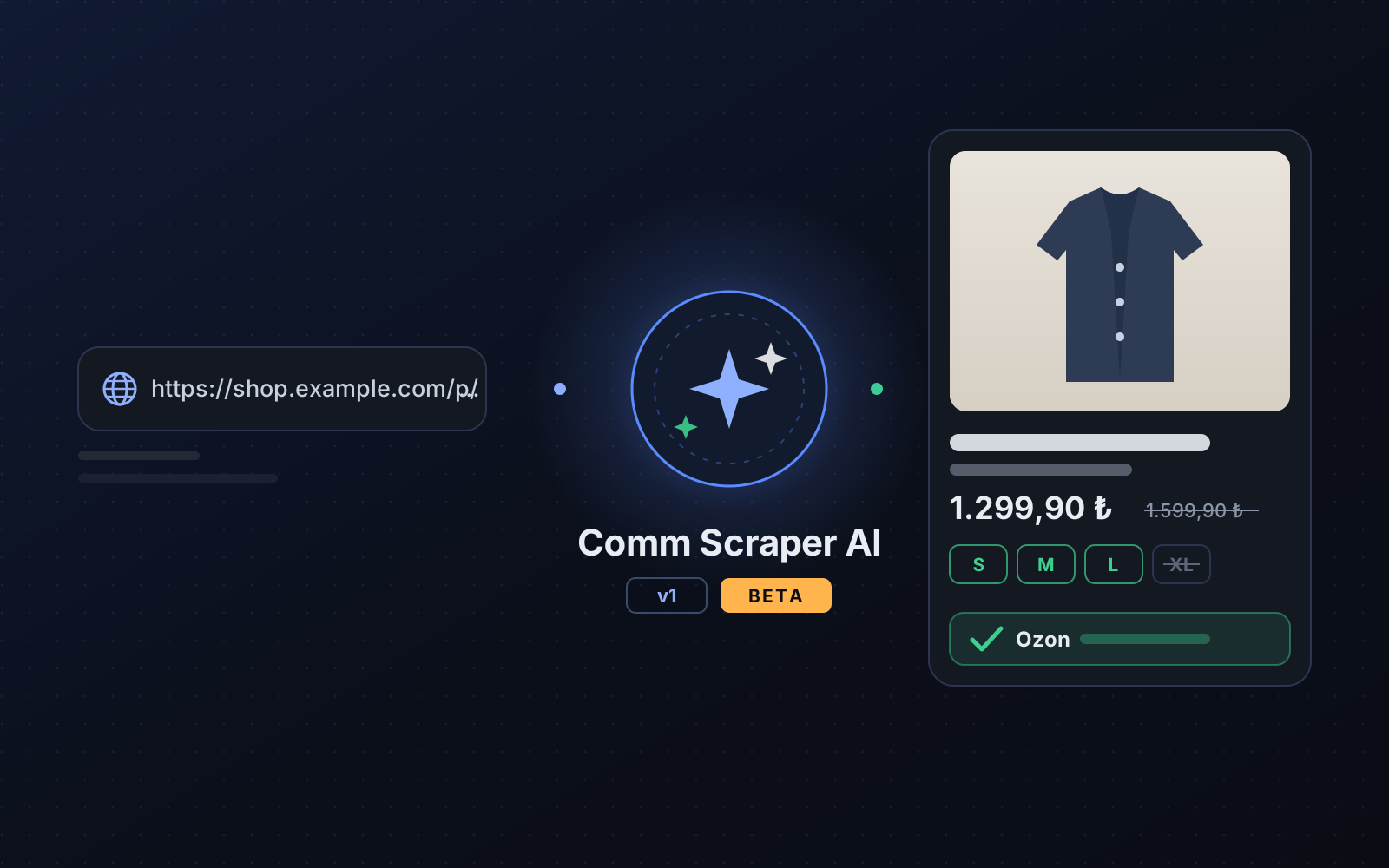
Comm Scraper AI v1: add products from sites that are not on the list
Paste a product link from an unsupported site; AI reads the page, extracts each size's stock and price, you check it and add it to your store in one click.
2026-10-19