 Commbot
Several Ozon stores in one account: your page stays put when you switch stores
Sellers who run more than one Ozon store use the panel from a single account. The My stores page summarises all of them side by side, and the selector in the left menu opens the same page for the other store, wherever you are.
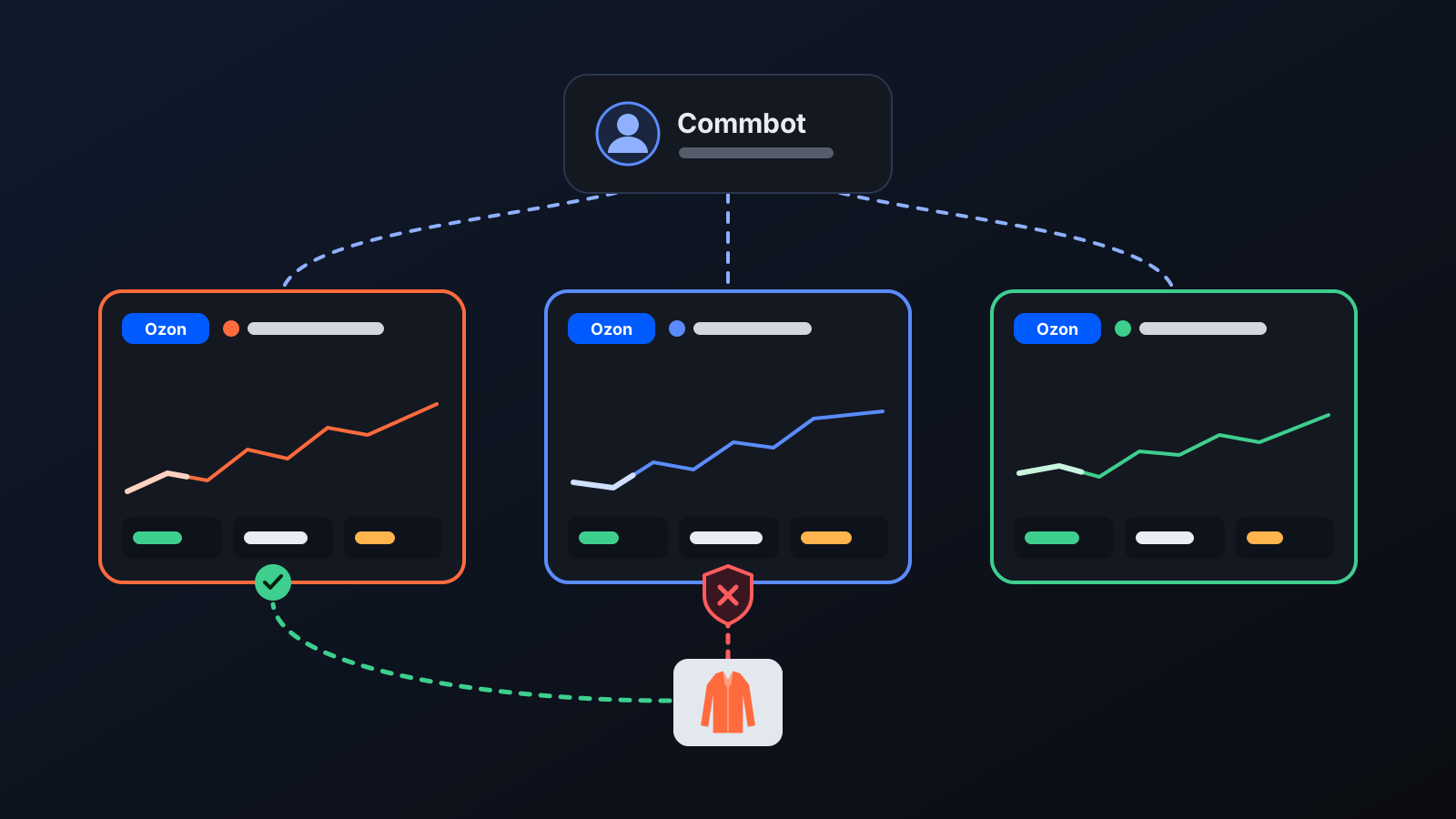
If you run two or more Ozon stores, you don't need a separate account for each. All your stores are connected to the same Commbot account, and every page in the panel shows the data of the selected store. Switching stores takes one menu choice.
How it works
- Open Stores in the left menu and press + Connect store; enter the Client-Id and Api-Key from Ozon Seller → Settings → Seller API and press Verify & Add. Keys are stored encrypted.
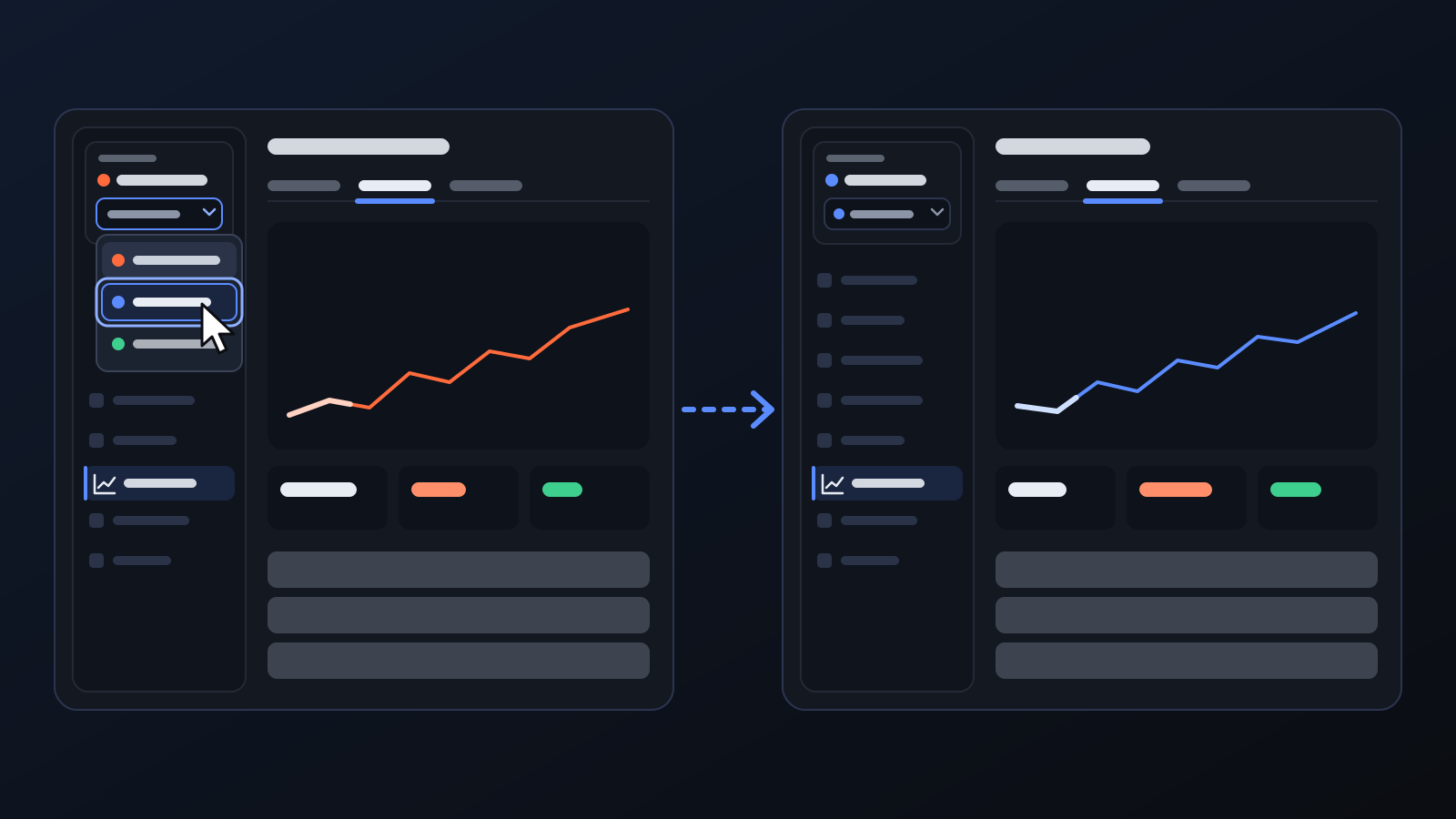
- Once you have more than one store, a selector appears in the Active store box at the top of the left menu.
- When you pick another store, the same page and the same tab open for it: if you're on the Traffic tab, you stay on Traffic.
- Your last chosen store is remembered: pages opened from a notification or a bookmark without a store come up with that store.
- The My stores page shows all stores side by side: listings on sale, out of stock and in draft, orders and cancellations in the last 30 days, today's views and the change from yesterday, and orders waiting to be sourced.
What it affects
- Products don't clash between stores: in your stores running on full automation, a product is open in only one store at a time, so the same product doesn't compete with itself across two of your stores. Price, promotion and listing decisions are also kept separately for each store.
- Settings per store: margin, daily upload count, priority words and similar settings are set separately for each store.
- New store approval: a newly connected store goes live with the Commbot administrator's approval; until then, no automatic action is taken on it.
- Removing doesn't delete: to remove a store you're asked to type its name. A removed store isn't deleted: its product records and settings stay, and automatic jobs stop. Undo in the Removed stores list brings it back as it was within 30 days.
For better results
- Give each store a distinctive name when you connect it (otherwise it is shown by its Client-Id); this name is used in the selector and in page titles.
- Make sure each store has an active warehouse on Ozon (FBS / rFBS): in a store without one, listings are created but stock can't be written, and a warning appears on My stores and on Home.
- If you want to sell different products in two stores, give them different priority words: each store is filled according to its own settings.
More from Commbot
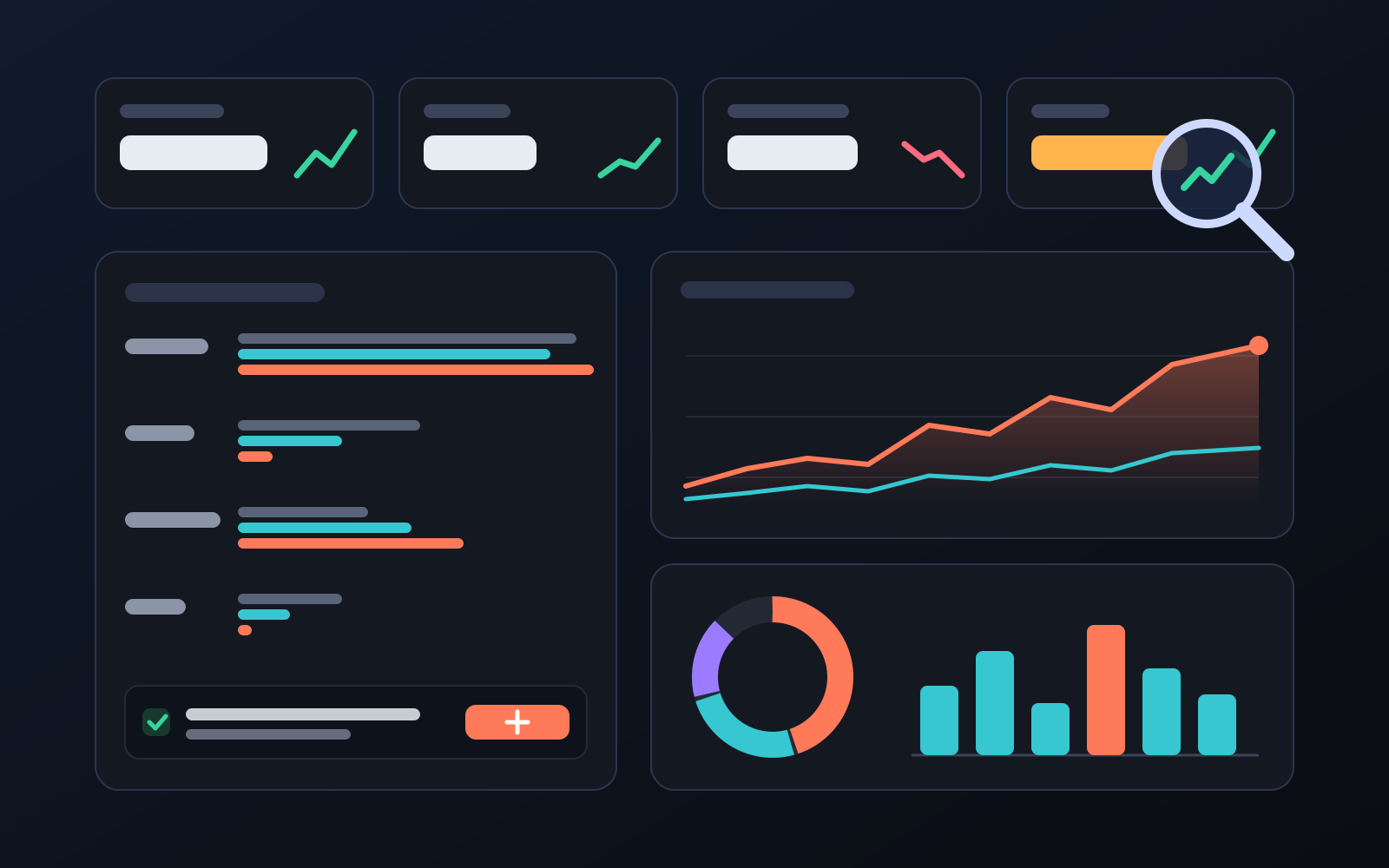
Analytics page: what sells in your store and what doesn't, on one screen
See how your products do by category, brand, price, colour, size and region, in charts. The page turns findings into plain sentences and gives one-click suggestions.
2026-10-29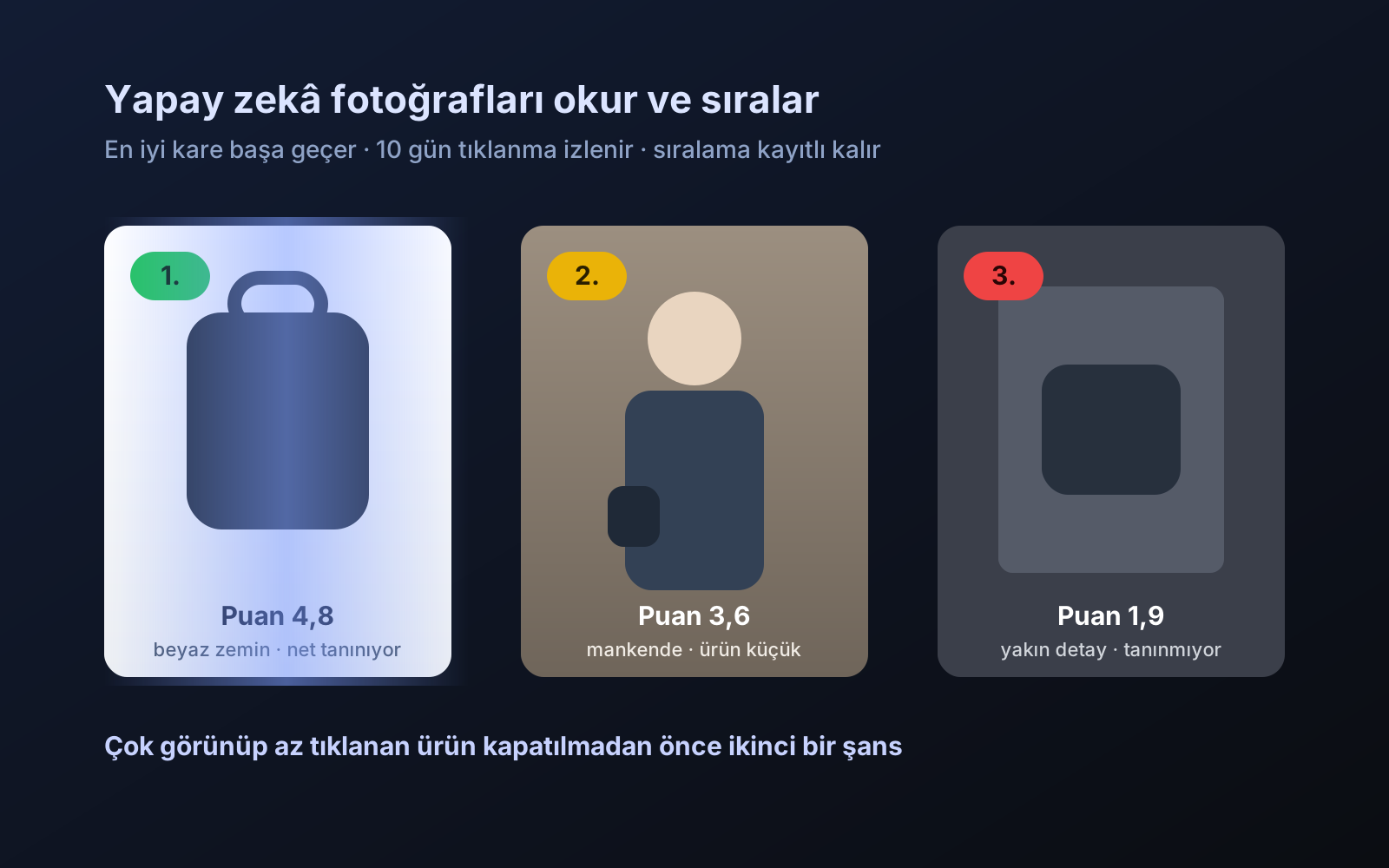
Photo trial before swap
We have improved our system for turning products on and off. It is still in a trial stage, but you can already use it.
2026-10-28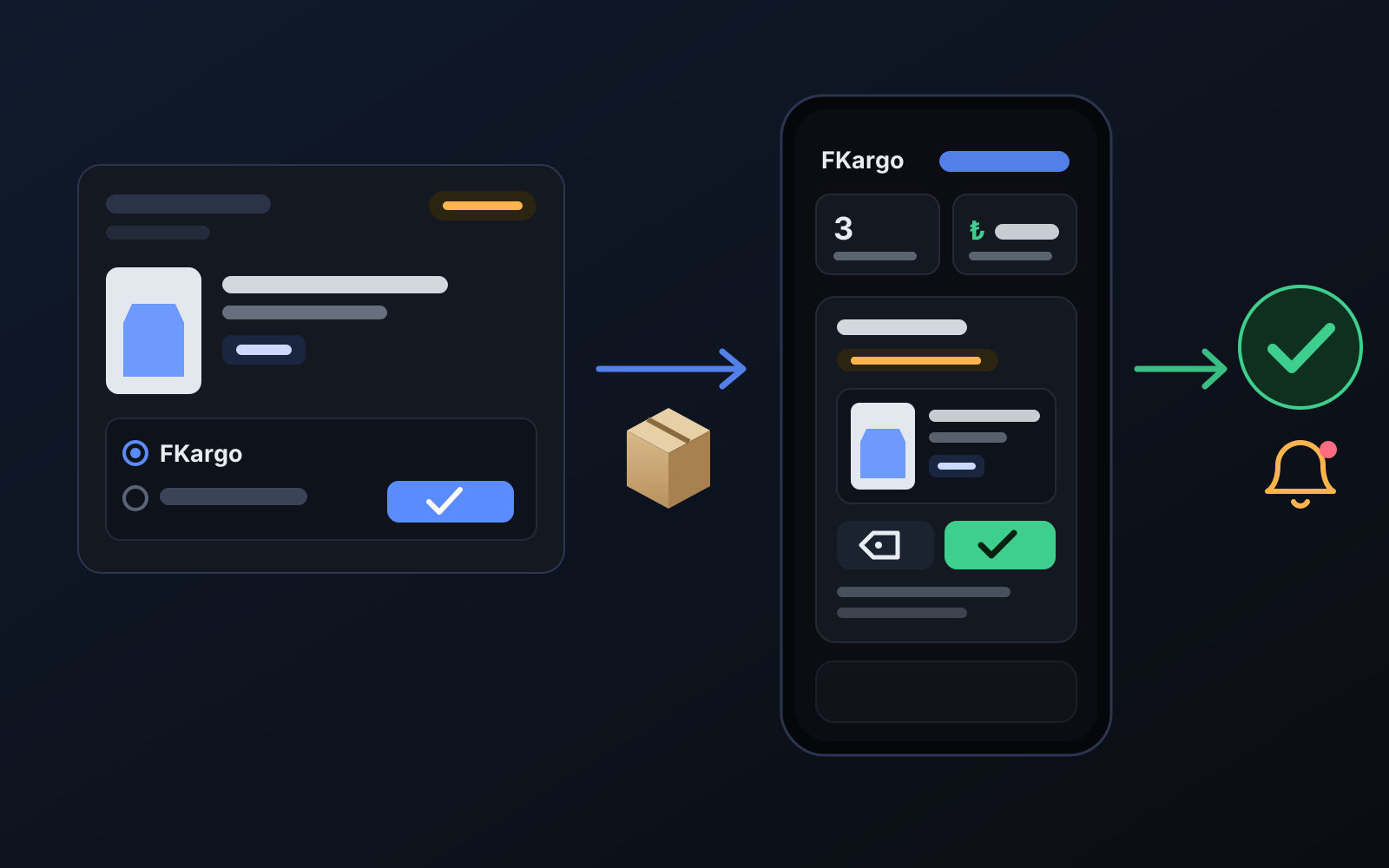
Shipping partners: hand your orders to FKargo and see when they are shipped
Order the item from the brand to FKargo’s address; FKargo puts on the Ozon label and drops the parcel at the shipping point. One-click forwarding and automatic forwarding in Incoming orders.
2026-10-20