 Commbot
Discover: swipe through products and turn the ones you like into store drafts
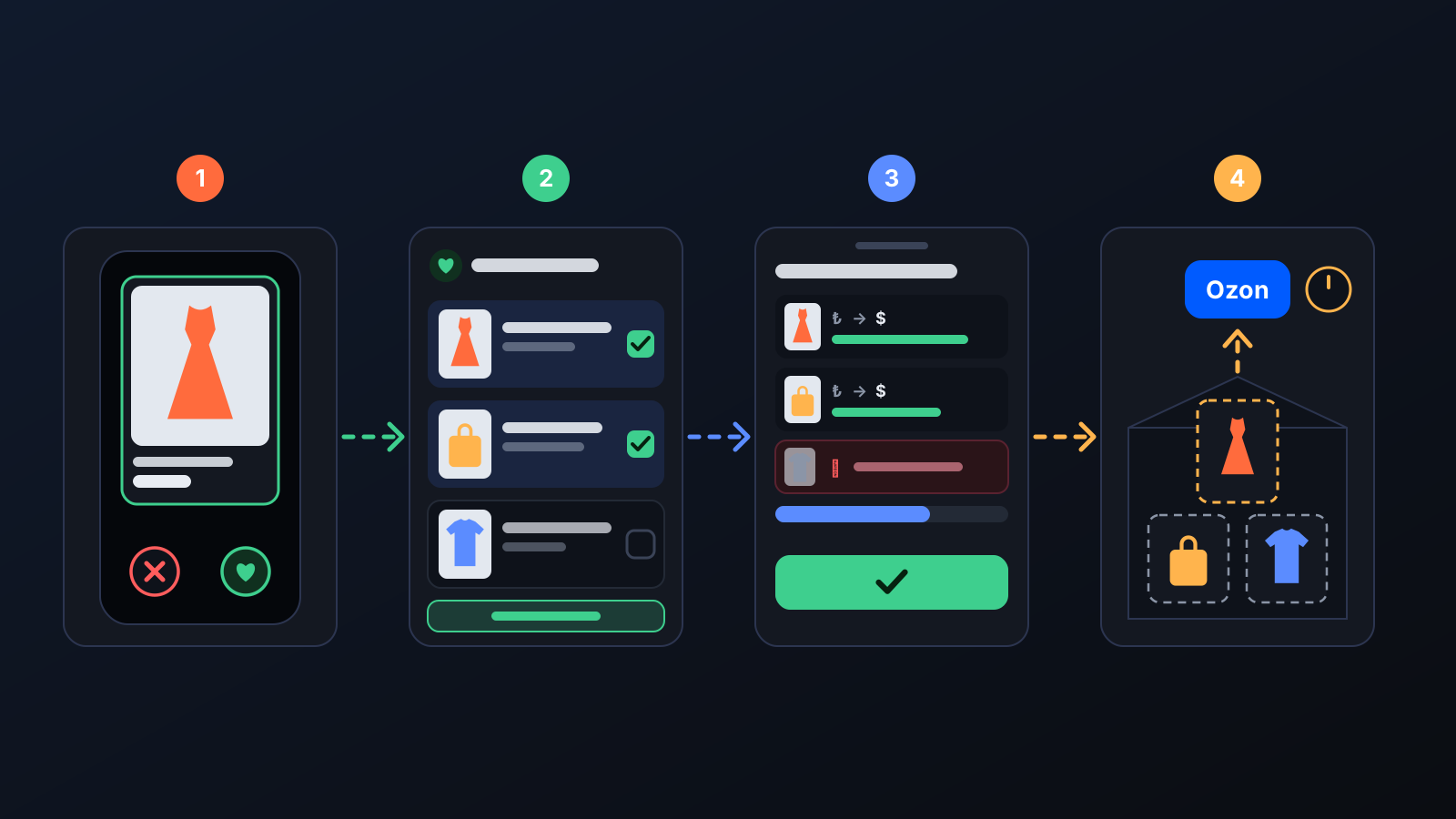
The catalog has thousands of products, and browsing table after table is tiring. Discover shows them one by one on large cards that are easy to view even on a phone; you collect the ones you like, then add them to your store as drafts, seeing their price and profit.

Picking products for your store used to mean filtering catalog tables and opening each product's photos one by one. Discover turns this into quick decisions: every card shows the product's large photo, brand, price, colors and sizes. Swipe right on what you like and left on what you don't; your picks are not lost, they collect in Favorites.
How it works
- Open Discover in the left menu. Swipe a card right to add the product to Favorites, or left to hide it for 3 days. On a computer, use the ✕ and ♥ buttons; ↶ (Undo) fixes an accidental swipe.
- Tap a card to open the details: all photos, description, colors and which sizes are in stock.
- Use Filter at the top to choose Brand and Product type; you can select several of each. By my store's upload settings brings, in one tap, products that match your store's priority words and contain none of its unwanted words; if your season filter is on, off-season products are hidden too.
- On the Favorites page, tick products and press Add to store and delete from list or Add to store without deleting from favorites.
- The This is how it will be, are you sure? window shows each product's cost, Ozon price, estimated net profit and the number of sizes in stock. Confirm, and the products are added to your store as drafts.
What it affects
- Your store: products don't go straight to Ozon; they are added as drafts and uploaded to Ozon when their turn comes in the daily upload. The confirmation window shows how many products make it into today's queue and how many move to the next day.
- Price: the selling price is calculated with the margin in your Price & Stock settings; the profit in the confirmation window is based on that price.
- Stock gate: a product with no size in stock, or whose size data can't be read, can be swiped but not added to the store; its card shows a grey chip saying so.
- My previous selections: products you added to the store are tracked with their status on this tab; you can move any of them back to Favorites.
For better results
- Check the list of products that won't be added in the confirmation window: products that don't qualify are listed there with the reason.
- If your daily upload is off, products wait as drafts; turn it on in Product Upload.
- Discover runs full screen on a phone; a few swipes in short breaks are enough to build up your selection.
- If a product you rejected before comes back, its card shows when you rejected it.
More from Commbot
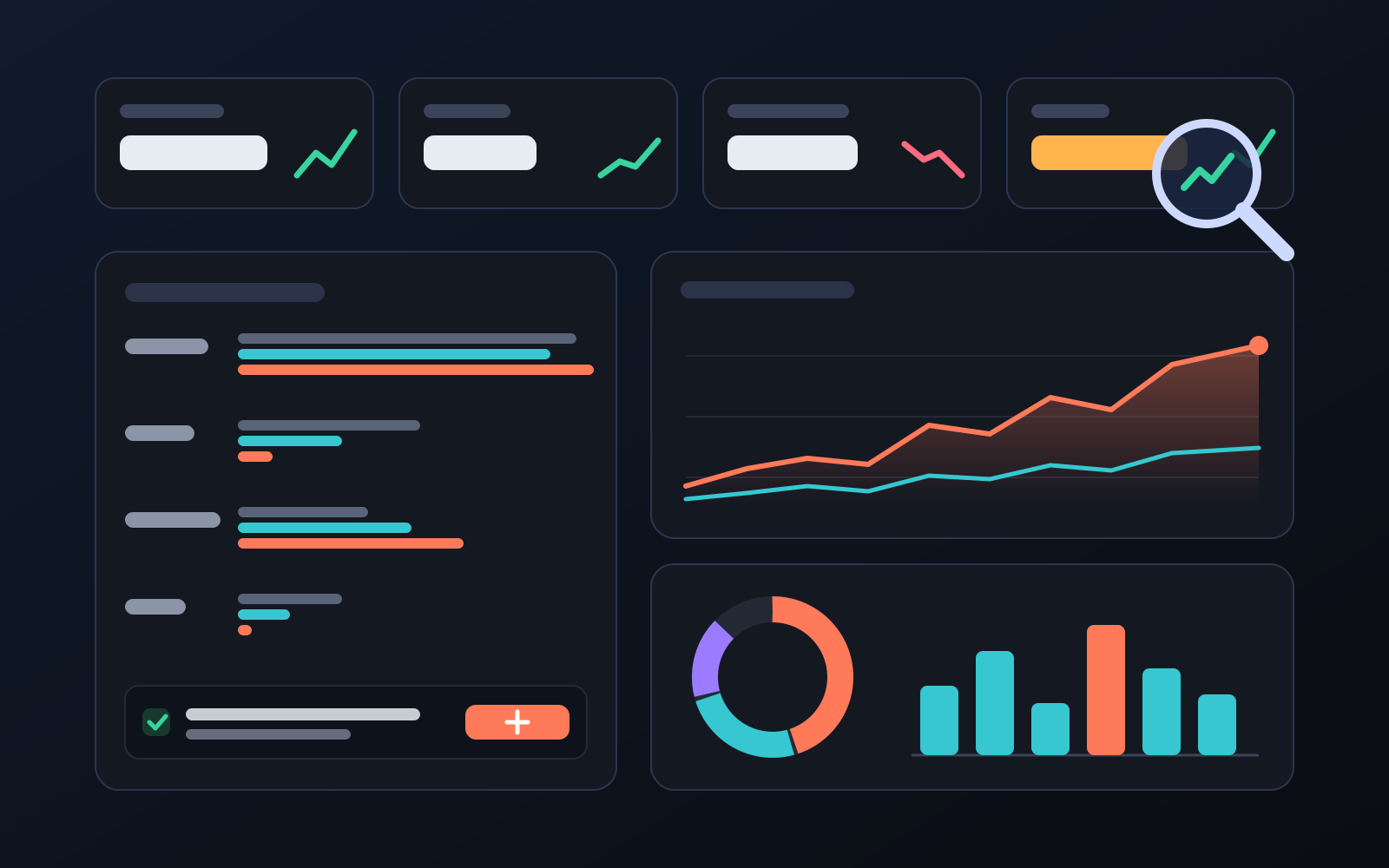
Analytics page: what sells in your store and what doesn't, on one screen
See how your products do by category, brand, price, colour, size and region, in charts. The page turns findings into plain sentences and gives one-click suggestions.
2026-10-29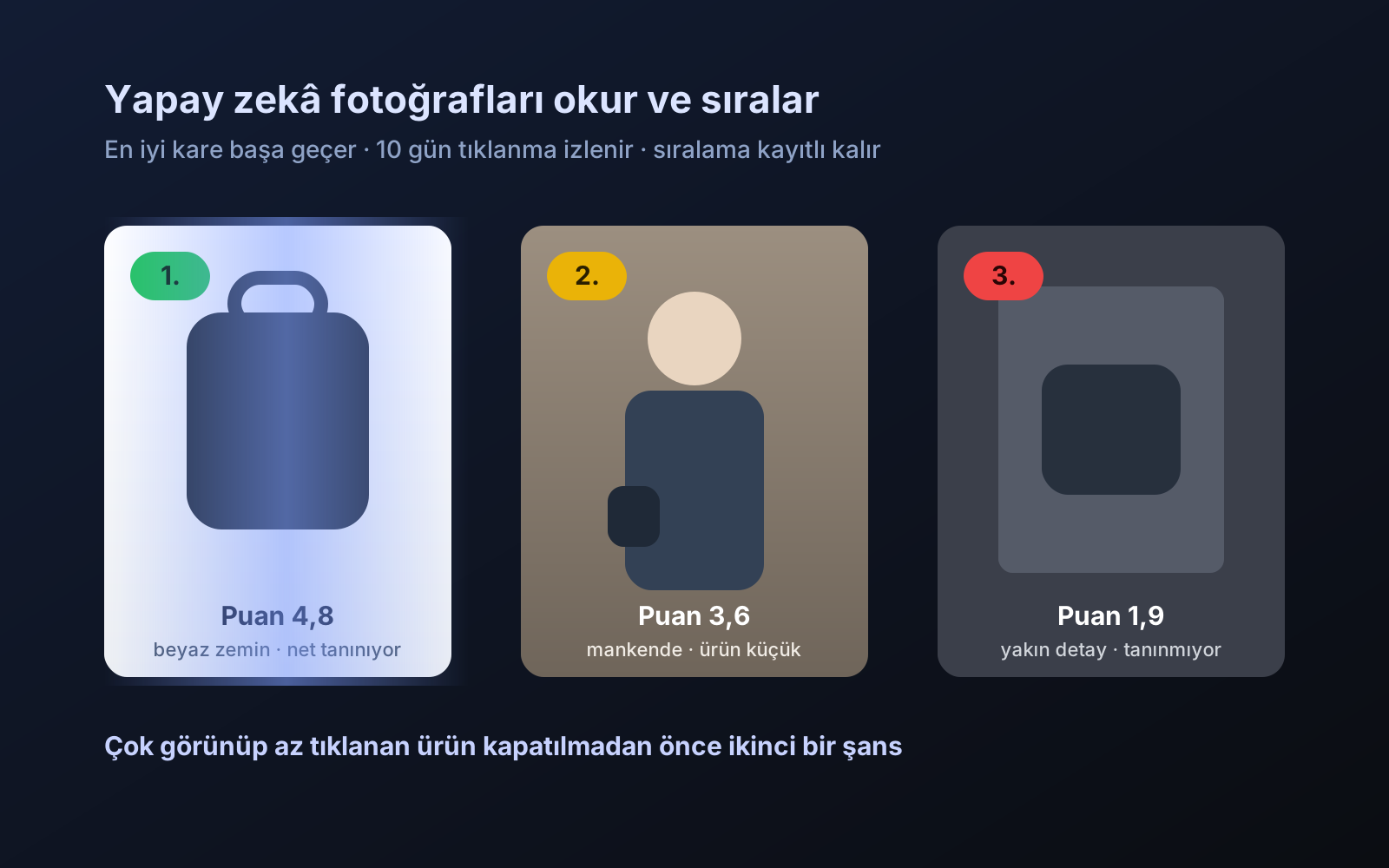
Photo trial before swap
We have improved our system for turning products on and off. It is still in a trial stage, but you can already use it.
2026-10-28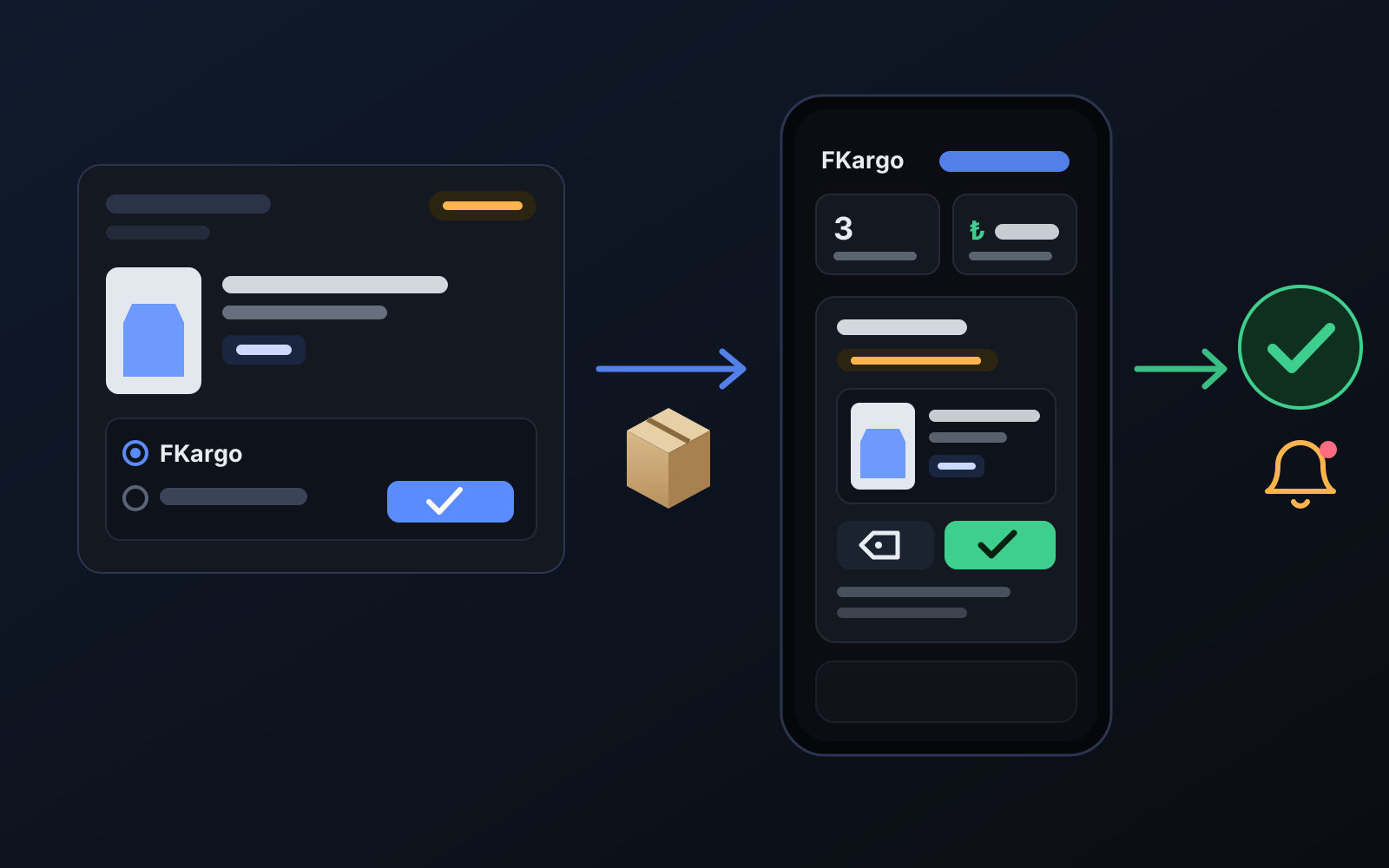
Shipping partners: hand your orders to FKargo and see when they are shipped
Order the item from the brand to FKargo’s address; FKargo puts on the Ozon label and drops the parcel at the shipping point. One-click forwarding and automatic forwarding in Incoming orders.
2026-10-20