 Commbot
Accounting is open to everyone: sales, invoices and your accountant on one screen
The Accounting screen is now open in every store. You see your sales ready for accounting and copy any field with one click. When you upload invoices in bulk, Commbot reads each one and places the items on the right sale or stock record by itself. Missing invoices arrive automatically from the Bershka, Stradivarius, Pull&Bear, Oysho and Zara websites (computer only) or from Gmail. Your accountant sees only this screen and marks the sales they have processed.
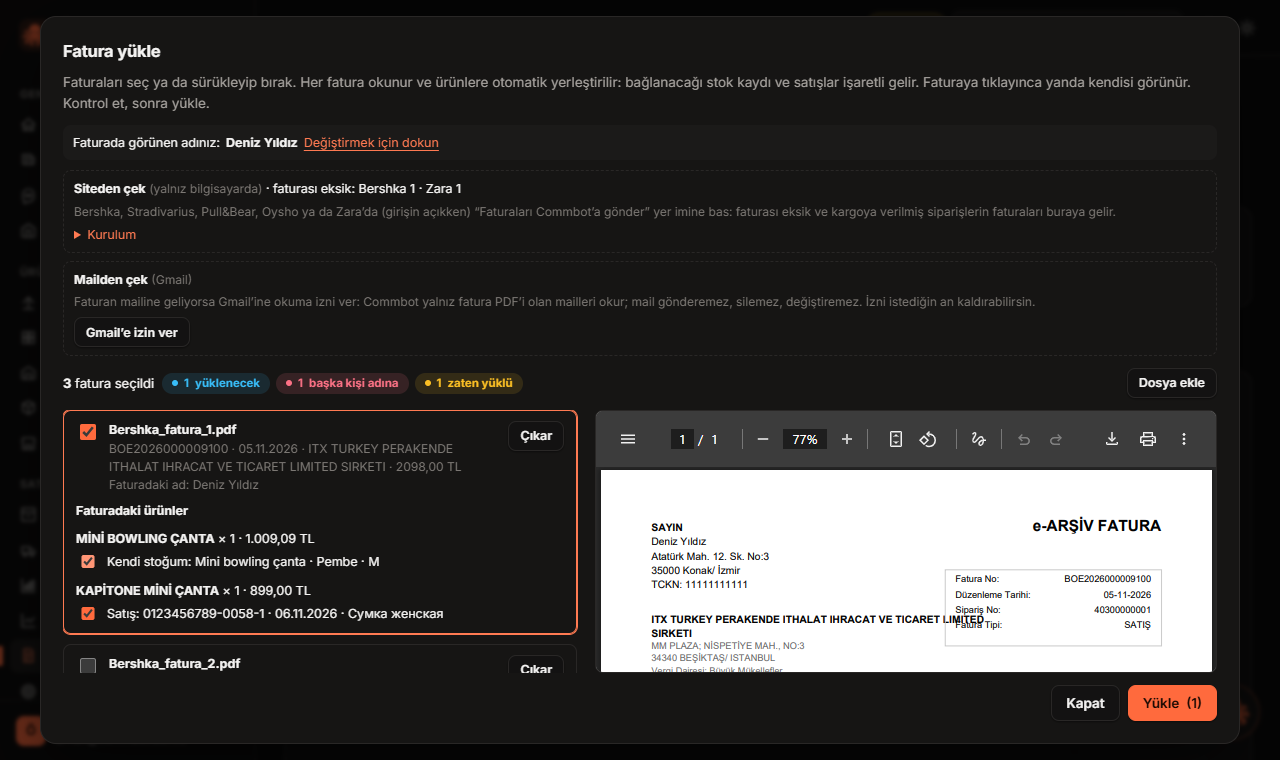
The Accounting screen is now open in every store. You see the month’s sales ready for your accountant and copy any field with one click; purchase and sales invoices, tax documents and your accountant’s access all live in the same place. Most importantly, you no longer match invoices by hand: drop the invoices in, Commbot reads them and places each item on the right sale or stock record by itself.
What is on the Accounting screen?
- Sales: the sales of the selected month; buyer (or “Ozon Customer”), city, region and address, product, quantity, unit price and amount. A copy button next to every field, plus Copy row, Copy table and Download CSV (opens in Excel with Turkish characters).
- Unprocessed / Processed: sales your accountant has processed are listed separately; the “Processed” mark can be undone. A sales invoice can only be attached to a delivered sale, so nothing is processed before it is sold.
- Purchase invoices, sales invoices, tax documents: PDF, JPG or PNG up to 10 MB. From a PDF, the invoice number, date, amount, seller and tax number are read automatically; from an accrual slip or receipt, the period, due date and tax type.
- In Incoming orders: Add invoice on every order row (manual, one invoice) and Upload invoices at the top (automatic, many invoices).
- My own stock: a purchase invoice can be linked to a stock record; every order fulfilled from that stock gets the invoice automatically.
- Accountant access: in Accounting → Accountant you pick your accountant from the list and send a request; access starts once your accountant approves it. The accountant sees only the Accounting screen in the panel: opens and copies sales and documents and marks them “Processed”. You add the documents. If your accountant has no Commbot account yet, write to us from Errors & Requests and we will open one.
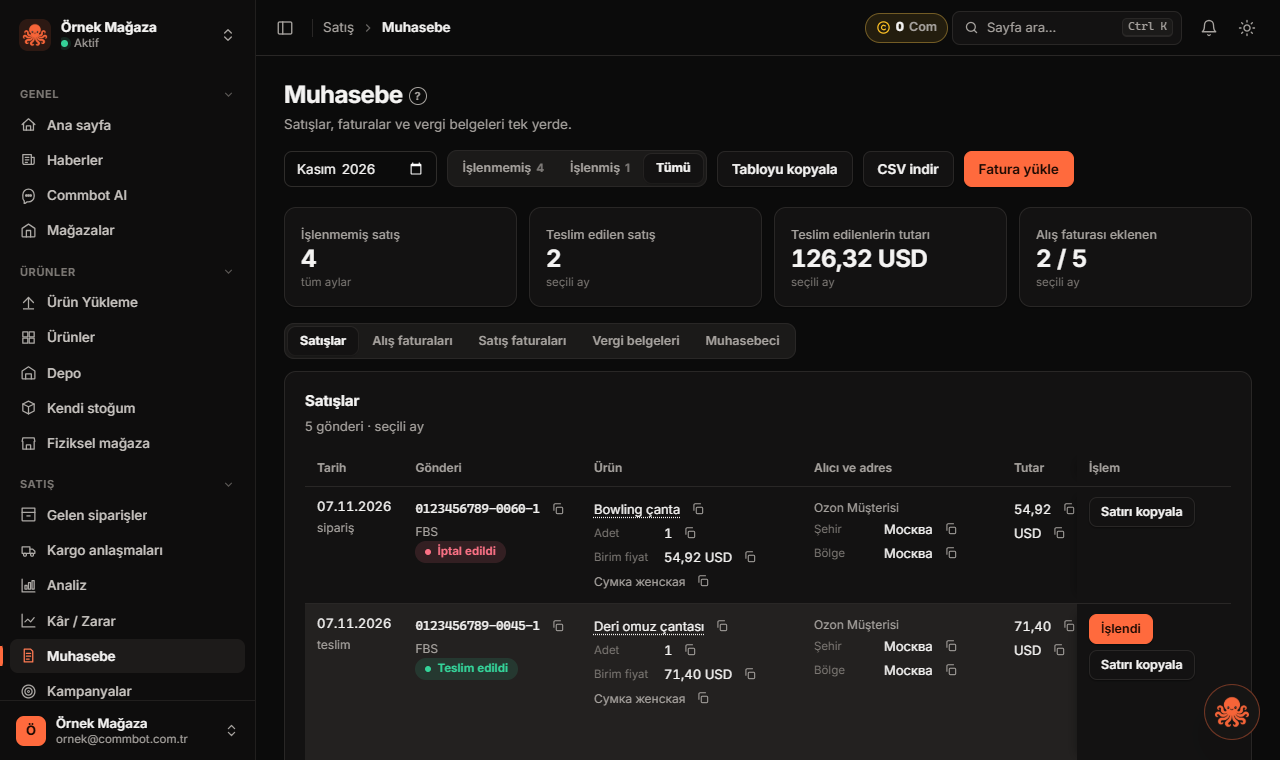
Automatic mode 1: Upload invoices
- Press Upload invoices on the Accounting or Incoming orders page.
- Drag and drop the invoices onto the window or choose them with Choose files; you can pick several at once.
- The first time, confirm the name on your invoices (add several names separated by commas if needed). Invoices issued to someone else are not placed on your items.
- Every invoice is read; next to each item the stock record or sale it will be linked to comes ticked. Click an invoice to open it on the side; check it and change the ticks if needed.
- Press Upload. The labels at the top show how many were uploaded and why the others were skipped: already uploaded, issued to someone else, listed twice or a delivery note.
Automatic mode 2: Fetch from the website (computer only)
For products you bought from Bershka, Stradivarius, Pull&Bear, Oysho and Zara, Commbot downloads the invoices from the store’s own website for you: only for shipped orders that are missing an invoice.
- In the Upload invoices window open Fetch from site → Setup and drag the Send invoices to Commbot button to your browser’s bookmarks bar. Without a bookmarks bar (e.g. Opera), paste the line from the setup into F12 → Console on the brand’s website.
- Sign in to your account on the brand’s website and click the bookmark; in the small window that opens, click the orange button Commbot’a bağlan ve faturaları gönder (Connect to Commbot and send invoices).
- Commbot opens and the matching invoices arrive in the Upload invoices window. Check them and press Upload.
Important: this tool works only on a computer; it does not appear on phones. If you are signed out on the website, the tool waits and tells you; it continues by itself once you sign in. Your password and sign-in details never reach Commbot; only the invoice PDF does.
Automatic mode 3: Fetch from Gmail
If your invoices arrive by email, give your Gmail read-only access with Get from email → Allow Gmail access. Commbot only searches emails with an invoice PDF attached; the ones matching your shipped orders that are missing an invoice arrive in the Upload invoices window. Commbot cannot send, delete or change email, and you can withdraw access at any time with Remove access.
Note: Google’s consent screen may show the warning “Google hasn’t verified this app” until Google’s verification is complete. Some brands (e.g. Inditex brands, Mango) do not email invoices; for them, fetch from the website or add the invoice from the order row.
Which rules does it follow?
- Items are matched by model and colour code; the sale closest in date to the invoice is chosen and linked for the quantity on the invoice. One sale is never suggested for two invoices.
- If the same invoice is uploaded again, it says “Already uploaded”; a delivery note does not count as an invoice.
- Only the store owner uploads, edits and deletes invoices; a deleted document can be restored.
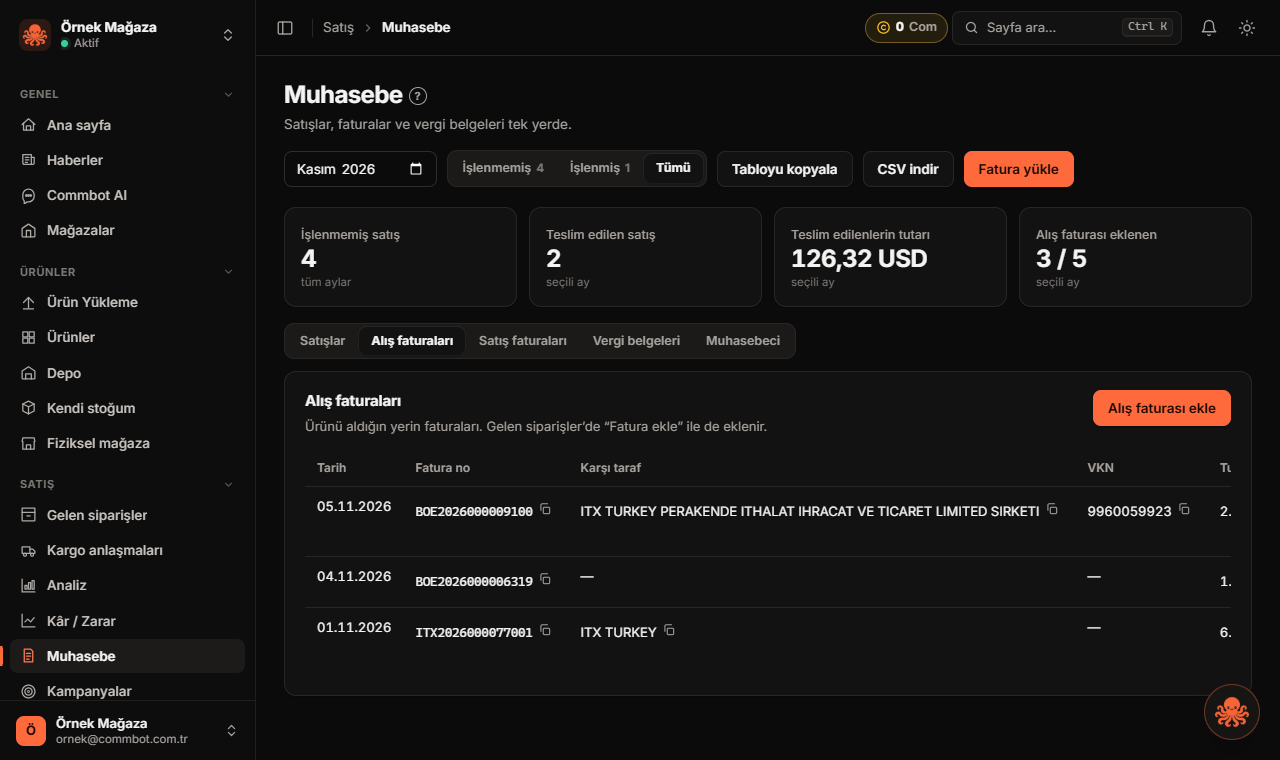
If you do not want the Accounting screen, you can turn it off in Approval and permissions → Modules.
More from Commbot
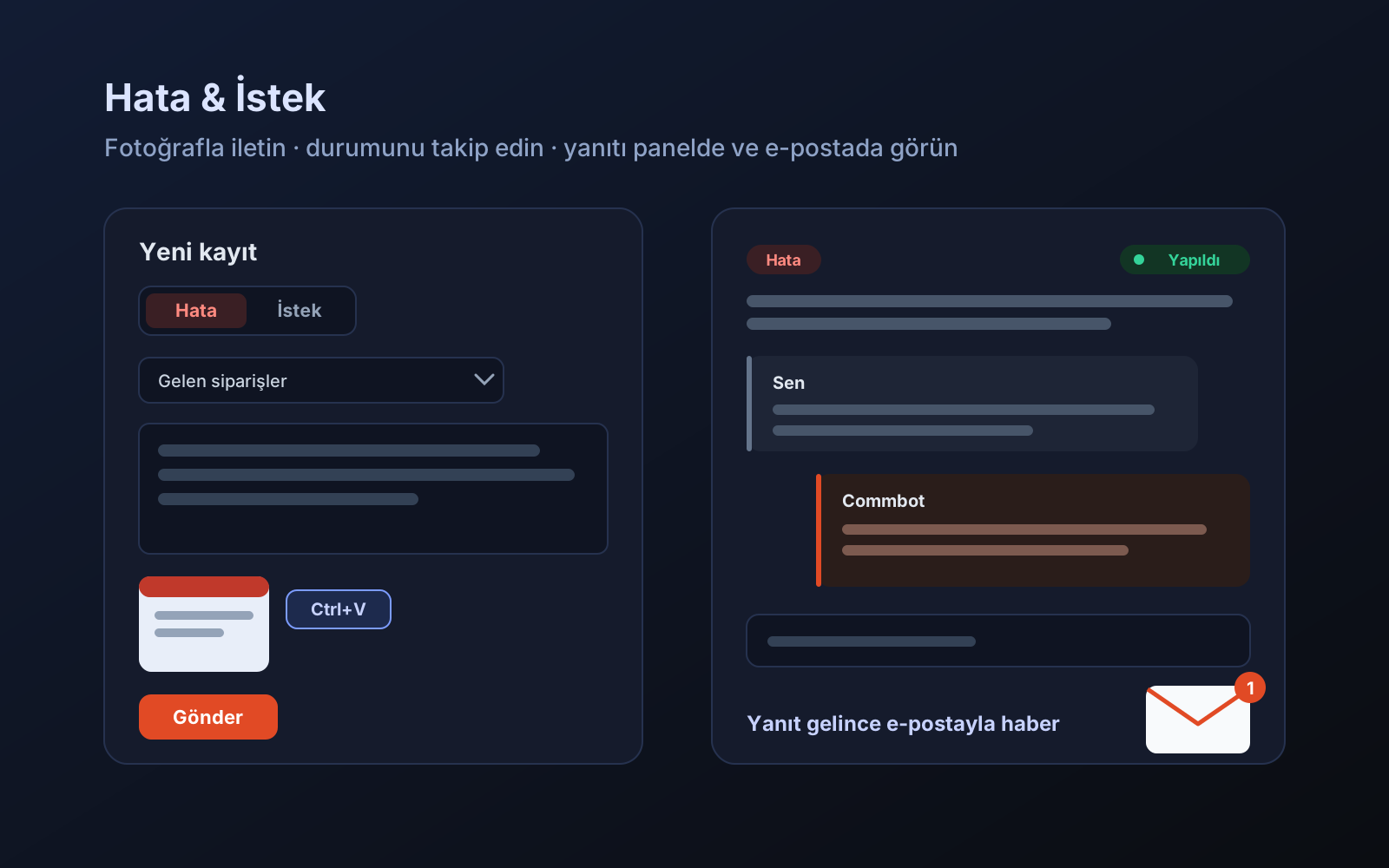
Errors & Requests: report a problem or ask for a feature from the panel
If something in the panel is not working or you would like a new feature, you can now write to us from the panel. Add photos, track the status and see the reply under your report and in your email.
2026-11-04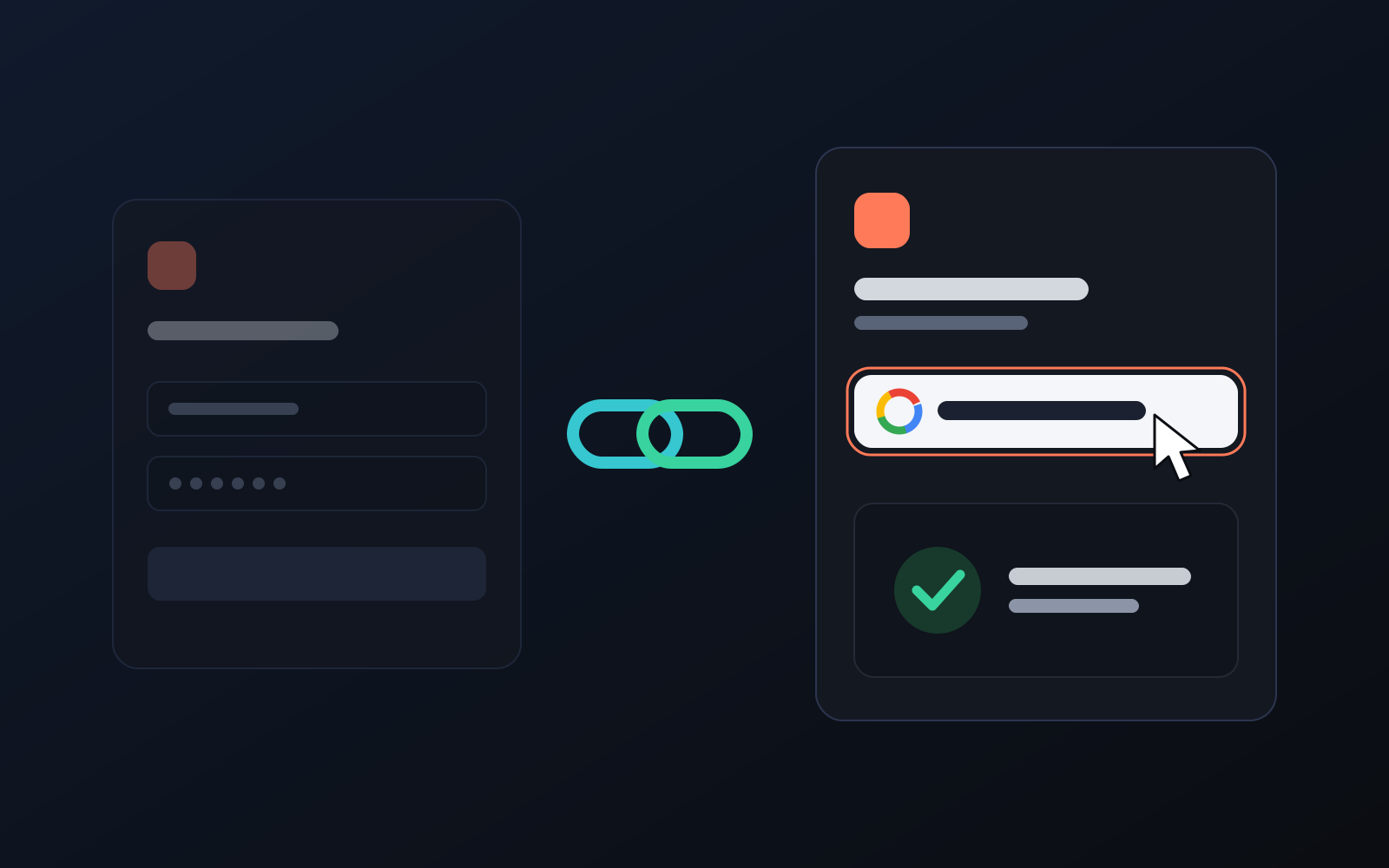
One-click sign-in: link your account to Google
You can now link your Google account to the account opened with the username and password we gave you. Link it once, then sign in with the "Sign in with Google" button without typing a password.
2026-10-29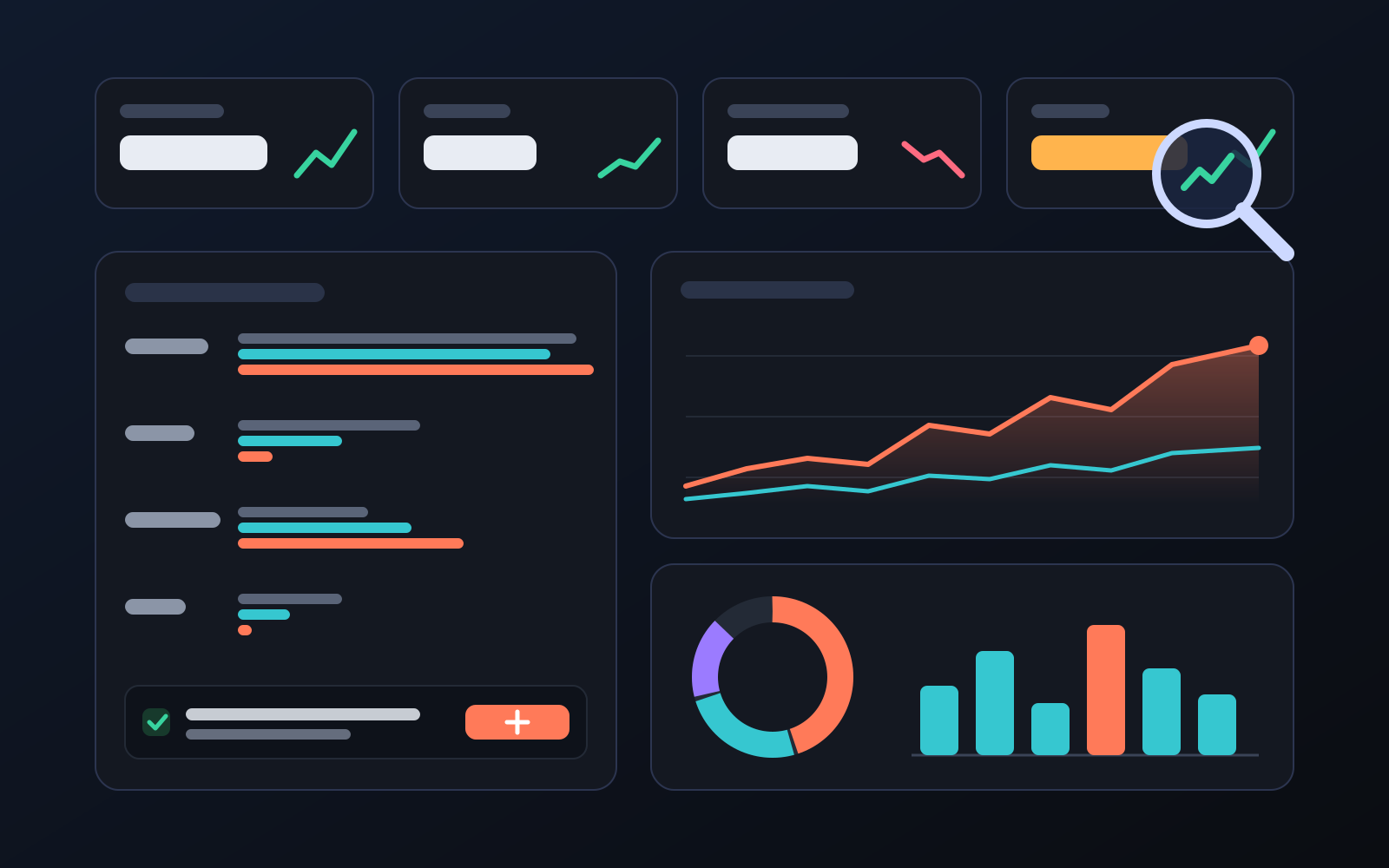
Analytics page: what sells in your store and what doesn't, on one screen
See how your products do by category, brand, price, colour, size and region, in charts. The page turns findings into plain sentences and gives one-click suggestions.
2026-10-29